
6.8 KiB
Wsl
Arch 리눅스 기반으로 작성되었음. WSL1 기반임. WSL2는 네트워크가 불안정해보임.
WSL Installation (Powershell)
Windows Function Enable
Windows Function enable ()
# WSL
Enable-WindowsOptionalFeature -Online -FeatureName Microsoft-Windows-Subsystem-Linux
# Windows Sandbox (optional)
Enable-WindowsOptionalFeature -FeatureName "Containers-DisposableClientVM" -All -Online
Download and Installation
$Arch_instDir = "c:/Archlinux"
mkdir -p $Arch_instDir
pushd $Arch_instDir
wget https://github.com/yuk7/ArchWSL/releases/latest/download/Arch.zip -OutFile Arch.zip
unzip ./Arch.zip
./Arch.exe
Terminal Emulator Installation
Installation
vcxsrv는 X windows 기반 앱사용시 설치.
choco install wsltty vcxsrv -y
pushd 'C:\ProgramData\Microsoft\Windows\Start Menu\Programs'
& '.\WSL Generate Shortcuts.lnk'
popd
시작 폴더 shell:startup 에 다음의 config.xlaunch 넣으면 좋은듯?
cp $HOME/.dotfiles/Note/WSL/config.xlaunch $HOME/AppData/Roaming/Microsoft/Windows/"Start Menu"/Programs/Startup/Icon Change

$Shell = New-Object -ComObject ("WScript.Shell")
$ShortcutPath = [Environment]::GetFolderPath("Desktop") + "/WSL Terminal.lnk"
$Shortcut = $Shell.CreateShortcut($ShortcutPath);
$Shortcut.IconLocation = "$Arch_instDir/arch.exe, 0"
$Shortcut.Save()
Add Context Menu
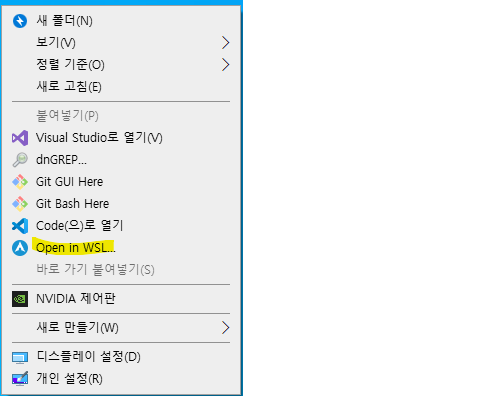
reg add "HKEY_CLASSES_ROOT\Directory\Background\shell\wsltty" /t REG_SZ /d "Open in WSLtty..." /f
reg add "HKEY_CLASSES_ROOT\Directory\Background\shell\wsltty" /v Icon /t REG_SZ /d "$Arch_instDir/arch.exe" /f
$mintty_cmd = $HOME + "\AppData\Local\wsltty\bin\mintty.exe --WSL= --configdir=" + $HOME + "\AppData\Roaming\wsltty"
reg add "HKEY_CLASSES_ROOT\Directory\Background\shell\wsltty\Command" /t REG_SZ /d $mintty_cmd /f
Minttyrc
wsltty는 mintty기반이므로 .minttyrc의 설정값을 따른다.
$HOME Directory에 위치시키자
cp $HOME/.dotfiles/.minttyrc $HOME/WSL Initialization (in WSL)
Locale
echo ko_KR.UTF-8 UTF-8 >> /etc/locale.gen
locale-gen
echo LANG=ko_KR.UTF-8 > /etc/locale.conf
echo [network] > /etc/wsl.conf
echo generateHosts = false >> /etc/wsl.conf
pacman-key --init
pacman-key --populate archlinux
Pacman Mirror List
WSL1 glibc-2-33-4 이슈가 있음. 마이크로소프트의 WSL1 커널 업데이트를 기대하기 힘든 상황이므로 WSL2를 사용하던지 Update Repo를 2월 14일자로 고정해 놓고 glibc를 업데이트 하면 glibc-2-33-3으로 업데이트됨.
echo "Server = https://archive.archlinux.org/repos/2021/02/14/\$repo/os/\$arch" > etc/pacman.d/mirrorlist
pacman -Sy archlinux-keyring
pacman -S glibc
그후 /etc/pacman.conf 의 IgnorePkg에 glibc 추가하여 업데이트가 진행되지 않도록 한후 mirrorlist를 최신으로 돌림.
IgnorePkg = fakeroot glibc한국 서버 우선.
echo "Server = http://ftp.harukasan.org/archlinux/\$repo/os/\$arch" > /etc/pacman.d/mirrorlist
echo "Server = https://ftp.harukasan.org/archlinux/\$repo/os/\$arch" >> /etc/pacman.d/mirrorlist
echo "Server = http://ftp.lanet.kr/archlinux/\$repo/os/\$arch" >> /etc/pacman.d/mirrorlist
echo "Server = https://ftp.lanet.kr/archlinux/\$repo/os/\$arch" >> /etc/pacman.d/mirrorlist
echo "Server = http://mirror.premi.st/archlinux/\$repo/os/\$arch" >> /etc/pacman.d/mirrorlist
pacman -Syu man wget
User Addition
EDITOR=vim visudo	# uncomment %wheel ALL=(ALL) ALL
useradd -m -g users -G wheel -s /bin/bash jaeus
passwd jaeus
Arch.exe 실행파일 있는곳에서 실행. (in powershell)
./arch.exe config --default-user jaeusGit
sudo pacman -S git
git config --global user.name "JaeYoo,Im"
git config --global user.email "cpu3792@gmail.com"
Paru (AUR Manager)
WSL1에서는 fakeroot-tcp를 사용해야 한다.
sudo pacman -S base-devel # don't install fakeroot
cd ~
git clone https://aur.archlinux.org/paru.git
cd paru
makepkg -si
Application
paru -S openssh python inetutilsCopy Configuration
  paru -S stow
  rm ~/.zshrc
  rm ~/.bashrc
  git clone https://github.com/JaeYoo-Im/myDots.git ~/.dotfiles
  cd ~/.dotfiles
  stow .
ZSH
    paru -S zsh oh-my-zsh-git zsh-syntax-highlighting zsh-autosuggestions
    chsh -s /bin/zsh jaeus
    /usr/share/oh-my-zsh/tools/install.sh
    mv ~/.zshrc.* ~/.zshrc # overwrite configuration
TMUX
paru -S tmux
git clone https://github.com/tmux-plugins/tpm ~/.tmux/plugins/tpm
TMUX_PLUGIN_MANAGER_PATH=~/.config/tmux/plugins/tpm ~/.tmux/plugins/tpm/scripts/install_plugins.sh
TMUX_PLUGIN_MANAGER_PATH=~/.config/tmux/plugins/tpm ~/.tmux/plugins/tpm/bin/update_plugins all
EMACS
GUI를 사용하기 위해 DISPLAY환경변수 추가.
  paru -S ripgrep emacs ttf-fira-code ttf-nanum

  # WSL1
  #echo export DISPLAY=:10.0 >> ~/.zshrc
  # WSL2
  VETHER_IP=$(/bin/grep nameserver /etc/resolv.conf 2> /dev/null | /bin/tr -s ' ' | /bin/cut -d' ' -f2)
  export DISPLAY=$VETHER_IP:0.0
Latex 지원
paru -S auctex texlive-most texlive-lang
Emacs Windows shortcut
c:\windows\system32\bash.exe 를 이용하며,
실행시 cmd창이 자꾸 뜨기 때문에 runs.exe프로그램을 이용한다.
in wsl.
cp ~/.dotfiles/Note/WSL/run_emacs.sh ~/.run_emacs.shin Powershell.
unzip $HOME/.dotfiles/Note/WSL/usr_cmd.zip -d $HOME/usr_cmd/JaeUs/dotfiles/src/commit/e61c959638c7c644475ef3206ff37e3efe5a5d13/Note/WSL/usr_cmd.zip 파일의 내용을 Windows의 $HOME/usr_cmd 에 넣는다.
Libre-office
Libre-office를 깔면 Emacs에서도 그 파일이 열림.
paru -S libreofficeProxy
export proxy_addr="http://192.168.1.168:3128"Global
echo export http_proxy=$proxy_addr >> ~/.zshrc
echo export HTTP_PROXY=$proxy_addr >> ~/.zshrc
echo export https_proxy=$proxy_addr >> ~/.zshrc
echo export HTTPS_PROXY=$proxy_addr >> ~/.zshrc
echo export ftp_proxy=$proxy_addr >> ~/.zshrc
echo export FTP_PROXY=$proxy_addr >> ~/.zshrc
echo export rsync_proxy=$proxy_addr >> ~/.zshrc
echo export RSYNC_PROXY=$proxy_addr >> ~/.zshrc
Sudo 명령어에 proxy 환경변수 통과
echo "Defaults env_keep += \"*_proxy *_PROXY\"" > ./05_proxy
sudo mv 05_proxy /etc/sudoers.d
sudo chown root:root /etc/sudoers.d/05_proxy
Git
git config --global http.proxy $proxy_addr
git config --global https.proxy $proxy_addr